three.jsを散策する⑨ コントロールパネルを表示してくれる lil-gui
three.jsでlil-guiの基本的な使い方を確認します。lil-guiを使用すると指定したプロパティを調整できるコントロールパネルを表示してくれます。
lil-gui を使用してコントロールパネルを表示する
three.jsでlil-guiの基本的な使い方を確認していきます。lil-guiを使用すると指定したプロパティを調整できるコントロールパネルを表示してくれます。公式サイトを確認したい方は下記のリンクからどうぞ。
執筆時のバージョンはlil-gui 0.18.2です。まずルートフォルダにindex.htmlを下記のように作成します。
<!DOCTYPE html>
<html>
  <head>
    <meta charset="UTF-8">
    <meta http-equiv="X-UA-Compatible" content="ie=edge">
    <meta name="viewport" content="width=device-width, initial-scale=1.0">
    <title>three.js app</title>
    <script async src="https://unpkg.com/es-module-shims@1.8.0/dist/es-module-shims.js"></script>
    <script type="importmap">
     {
       "imports": {
	 "three": "https://unpkg.com/three@v0.157.0/build/three.module.js",
	 "three/addons/": "https://unpkg.com/three@v0.157.0/examples/jsm/"
       }
     }
    </script>
  </head>
  <body>

    <div id="canvas-container"></div>

    <script type="module" src="main.js"></script>
  </body>
</html>
アドオンを読み込んでおく必要があります。index.htmlはこれで完成です。次にルートフォルダ内にmain.jsを作成します。importでlil-guiを読み込みます。今回はメッシュの回転速度を調整できるコントロールパネルを表示します。
import * as THREE from 'three';
import { OrbitControls } from 'three/addons/controls/OrbitControls.js';
import { GUI } from 'three/addons/libs/lil-gui.module.min.js';

const container = document.querySelector( '#canvas-container' );
let width = container.clientWidth;
let height = 350;

//レンダラー
const renderer = new THREE.WebGLRenderer({ antialias: true });
renderer.setSize( width, height );
renderer.shadowMap.enabled = true;
renderer.shadowMap.type = THREE.VSMShadowMap;
renderer.setClearColor( 0xffffff );
container.appendChild( renderer.domElement );

//シーン
const scene = new THREE.Scene();
scene.background = new THREE.Color( 0xffffff );
scene.fog = new THREE.Fog( 0xffffff, 0.0025, 50 );

//カメラ
const camera = new THREE.PerspectiveCamera( 60, width / height, 0.1, 1000 );
camera.position.set( -3, 2, 4 );

//オービットコントロール
const orbitControls = new OrbitControls( camera, renderer.domElement );
orbitControls.enableZoom = false;
orbitControls.update();

//リサイズの処理
function resize() {
    let width = container.clientWidth;
    renderer.setSize( width, height );
    camera.aspect = width / height;
    camera.updateProjectionMatrix();
};
window.addEventListener( "resize", resize );

//メッシュ
const icosahedronGeometry = new THREE.IcosahedronGeometry( 1, 0 );
const icosahedronMaterial = new THREE.MeshStandardMaterial({ color: 0x0000ff });
const icosahedron = new THREE.Mesh( icosahedronGeometry, icosahedronMaterial );
icosahedron.position.x = -1;
icosahedron.castShadow = true;
scene.add( icosahedron );

const torusKnotGeometry = new THREE.TorusKnotGeometry( 0.5, 0.2, 100, 100 );
const torusKnotMat = new THREE.MeshStandardMaterial({
color: 0x00ff00,
roughness: 0.1,
});
const torusKnotMesh = new THREE.Mesh( torusKnotGeometry, torusKnotMat );
torusKnotMesh.castShadow = true;
torusKnotMesh.position.x = 2;
scene.add( torusKnotMesh );

const groundGeometry = new THREE.PlaneGeometry( 1000, 1000 );
const groundMaterial = new THREE.MeshLambertMaterial({ color: 0xcccccc });
const groundMesh = new THREE.Mesh( groundGeometry, groundMaterial );
groundMesh.position.set( 0, -2, 0 );
groundMesh.rotation.set( Math.PI / -2, 0, 0 );
groundMesh.receiveShadow = true;
scene.add( groundMesh );

//ライト
scene.add( new THREE.AmbientLight( 0xffffff ));
const dirLight = new THREE.DirectionalLight( 0xffffff );
dirLight.position.set( 5, 12, 8 );
dirLight.castShadow = true;
scene.add( dirLight );

//lil-GUI
const gui = new GUI( { container: container, width: 320 } );
const props = {
icosahedronSpeed: 0.01,
torusSpeed: 0.01,
};
gui.add( props, 'icosahedronSpeed', -0.3, 0.3, 0.01 );
gui.add( props, 'torusSpeed', -0.3, 0.3, 0.01 );

//アニメーション
function animate() {
    requestAnimationFrame( animate );

    icosahedron.rotation.x += props.icosahedronSpeed;
    icosahedron.rotation.y += props.icosahedronSpeed;
    icosahedron.rotation.z += props.icosahedronSpeed;
    torusKnotMesh.rotation.x -= props.torusSpeed;
    torusKnotMesh.rotation.y += props.torusSpeed;
    torusKnotMesh.rotation.z -= props.torusSpeed;

    orbitControls.update();
    renderer.render( scene, camera );
}

animate();
lil-GUIの部分でコントロールパネルを表示を調整しています。
//lil-GUI
const gui = new GUI( { container: container, width: 320 } );
const props = {
icosahedronSpeed: 0.01,
torusSpeed: 0.01,
};
gui.add( props, 'icosahedronSpeed', -0.3, 0.3, 0.01 );
gui.add( props, 'torusSpeed', -0.3, 0.3, 0.01 );
containerを指定することでコントロールパネルが表示される場所を指定しています。デフォルトではブラウザ内の右上あたりに表示されるので、今回は<div id="canvas-container"></div>の部分に表示されるように指定しています。描画を確認してみます。
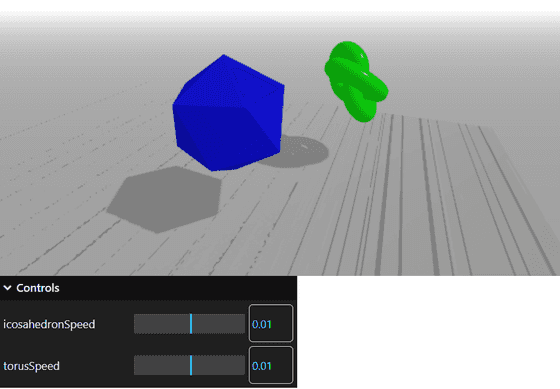
Scene(シーン)の左下にコントロールパネルが表示されているのが確認できました。詳細な使い方はおいおい学んでいければと思います。